Customization
| Example page themes in Tollerus |
|---|
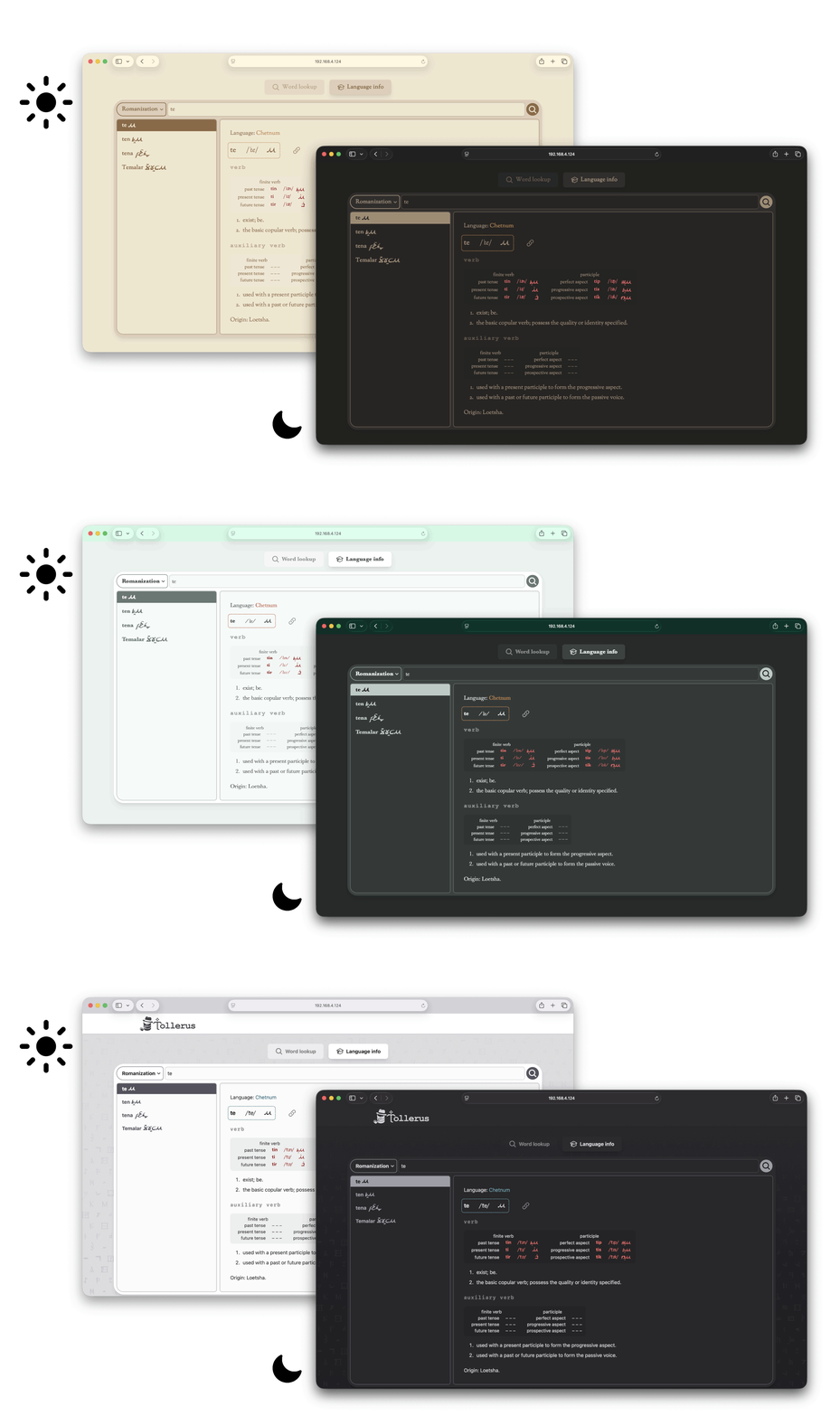 |
There are several things in the config/tollerus.php file that you can adjust to fit your needs.
You can even change reader-facing pages to use your own custom theme (see "Public page theme" below).
Route prefixes
These config keys let you change the URLs of the Tollerus pages on your website.
| Config key | Default value | purpose |
|---|---|---|
admin_route_prefix |
tollerus/admin |
These are pages in the admin config area, for dictionary authors. |
public_route_prefix |
tollerus |
These are pages in the reading/browsing interface for readers. |
TIP
The public_route_prefix may be useful if your website has its own branding or content structure. For example on Eithalica.world, this is set to lore/dictionary to organize Tollerus with other content in the "lore" section.
Middleware
These config keys let you change the Laravel middleware on Tollerus pages.
| Config key | Default value | purpose |
|---|---|---|
middleware |
['web'] |
Middleware for all Tollerus pages, both admin and public |
admin_middleware |
['web','auth'] |
Middleware applied to admin pages |
You can use this to control whether a user needs to be logged in. For example if you want to require login for users to read/browse your dictionary, you can add 'auth' to the middleware array. (It's already required for author/admin pages.)
NOTE
These two arrays are merged and de-duplicated for admin pages, so the default values are equivalent to:
'middleware' => ['web'],
'admin_middleware' => ['auth'],
Public page titles
These config keys affect what page title appears for the reading/browsing pages.
| Config key | Default value | purpose |
|---|---|---|
public_page_title_base |
Tollerus |
Site name used for the beginning of the page title. |
public_page_title_append |
true |
Toggles whether anything is added at the end of each page's title. |
You can change public_page_title_base to your site name. For example if you set:
'public_page_title_base' => 'MySite',
'public_page_title_append' => true,
then when you visit "Language info", the page title will be MySite Language info. If you disable public_page_title_append then it will be simply MySite on all Tollerus reading pages.
Public page theme
WARNING
If your host app is using Tailwind CSS, then this feature requires Tailwind v4 or later. Earlier Tailwind versions cause conflicts with Tollerus page styles.
These config keys let you set a custom Blade layout for the reading/browsing pages.
| Config key | Default value | purpose |
|---|---|---|
public_layout |
null |
Identifies a Laravel view. If null, the default Tollerus layout is used. |
public_layout_section |
content |
The template section name where Tollerus content is inserted. |
If public_layout is non-null, then it should point to a Blade layout that meets certain Tollerus requirements.
You can generate example layouts using this command:
php artisan vendor:publish --tag=tollerus-layouts
This will create the following files in your website folder:
resources/views/vendor/tollerus/layouts/full.blade.phpresources/views/vendor/tollerus/layouts/minimal.blade.php
These file locations map to the following values in public_layout:
'vendor.tollerus.layouts.full''vendor.tollerus.layouts.minimal'
Custom layout structure
The minimal.blade.php file looks like this:
<!DOCTYPE html>
<html lang="{{ str_replace('_', '-', app()->getLocale()) }}">
    <head>
        <title>{{ $title }}</title>
        <meta name="csrf-token" content="{{ csrf_token() }}">
        @stack('styles')
    </head>
    <body>
        <main>
            {{-- This section name must match the config value `public_layout_section`. --}}
            @yield('content')
        </main>
        @stack('scripts')
    </body>
</html>
This demonstrates the following minimum requirements for a custom Tollerus layout:
@stack('styles')in the document head (This should come after any styles added by your app.)@yield('content')(This should match the section name you define inpublic_layout_section.)@stack('scripts')just before</body>
Custom layout style
The full.blade.php file demonstrates how to control the colors and styles of Tollerus page elements to match your website theme. This is done by setting --tollerus-* CSS variables in a <style> tag. For example:
--tollerus-bg: 233 242 237;
--tollerus-surface: 255 255 255;
--tollerus-text: 55 63 61;
The color values should be space-separated integers representing RGB values from 0 to 255. This is because they will be used in a CSS rgb() expression.
Here is a full list of --tollerus-* variables that you can adjust:
| Variable | type | example use |
|---|---|---|
--tollerus-bg |
color | Colors related to the page background |
--tollerus-surface |
color | Background of panel elements |
--tollerus-surface-inactive |
color | Inactive tabs |
--tollerus-surface-hover |
color | Tabs when hovered |
--tollerus-text |
color | Text color |
--tollerus-text-inverse |
color | Text color on buttons |
--tollerus-text-irregular |
color | Text color for irregular word inflections |
--tollerus-muted |
color | Color for low contrast against panel elements |
--tollerus-border |
color | Borders |
--tollerus-primary |
color | Link colors, primary buttons |
--tollerus-primary-hover |
color | Link colors / primary buttons when hovered |
--tollerus-secondary |
color | Non-primary buttons |
--tollerus-secondary-hover |
color | Non-primary buttons when hovered |
--tollerus-ring |
color | Tab-indexed cursor for accessibility |
--tollerus-font-main |
font list | Regular text |
--tollerus-font-transliterated |
font list | |
--tollerus-font-mono |
font list | Word class headings |